---
title: Managing Access Cards (RFID Keys)
description: Add and delete access cards (RFID keys) to manage smart lock access.
---
[Skip to content](https://help.33lock.com/managing-access-cards#main-content)
[%20Logo%20(5)-1.png?width=160&height=80&name=v%20(Dark%20BG%20variant)%20Logo%20(5)-1.png)](https://www.33lock.com)
- [PRODUCTS](https://www.33lock.com/products)
- [PARTNERS](https://www.33lock.com/partners)
- [ABOUT US](https://www.33lock.com/about)
Open main navigation
Close main navigation
- [PRODUCTS](https://www.33lock.com/products)
- [PARTNERS](https://www.33lock.com/partners)
- [ABOUT US](https://www.33lock.com/about)
How can we help you?
- There are no suggestions because the search field is empty.
1. [33 Lock Help Documentation](https://help.33lock.com/?hsLang=en-us)
2. [Managing Devices](https://help.33lock.com/managing-devices?hsLang=en-us)
3. [Managing Lock Access](https://help.33lock.com/managing-devices?hsLang=en-us#managing-lock-access)
# Managing Access Cards (RFID Keys)
### Overview
Access Cards (Aka RFID Keys) Are A More Traditional Type Of Access Method, With The Majority Of Properties Already Leveraging This Technology.
❗This requires a [registered TTLock account](https://342708364.hs-sites-na3.com/en-us/ttlock-account-registration?hsLang=en-us)
- Download the TTLock application on [Android](https://play.google.com/store/apps/details?id=com.tongtongsuo.app&hl=en_CA) or [iOS](https://apps.apple.com/us/app/ttlock/id1033046018) devices
- Access the TTLock Web System on desktop [here](https://lock2.ttlock.com/)
### Adding cards
#### Adding access cards using your Smart Lock
❗Must be next to the hardware with Bluetooth enabled on your mobile device
1. From the home screen, select a lock
2. Tap “Cards”
3. Choose if you want the card to be “Permanent”, “Timed”, or “Recurring”
1. If “Timed” or “Recurring”, set the validity period
4. Assign a name and tap next
5. The lock will ask you to present the card
6. Present the card against the front of the lock
❗Any lock can be used to add a RFID card into the system. Once the card is added, it can then be assigned to other locks using the TTLock Web Application.
If at this point you want to program this card onto other locks too, follow these steps:
1. Log into the [TTLock Web Application](https://lock2.ttlock.com/)
2. Click “Issue Card”
3. Click “Sync Card” and the card you added to the lock will appear in the list
4. Click “Issue” next to the card you want to program and then choose the locks that you want that card to be programmed to and click “OK”
#### Add a card using a card reader
❗TTLock [Web Console](https://lock2.ttlock.com/) only and lock must be connected to a [gateway](https://help.33lock.com/en-us/understanding-gateways?hsLang=en-us)
❗The card encoder must be plugged in to a laptop or desktop computer, and the user must be logged into the TTLock Web Console.
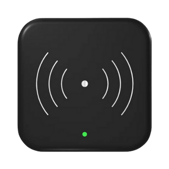
1. From the home screen, click “Issue Card”
2. Choose “Issue Card” from the menu bar
3. Select one or more locks you want the card to be programmed to
4. Name the card (it’s recommended to use an easy naming convention)
5. Choose if you want the card to be “Permanent”, “Timed”, or “Recurring”
1. If “Timed” or “Recurring”, set the validity period
6. Click “Read Card”
7. Tap the card on the card reader
❗Use the “Search” function to quickly identify any card registered in the system by tapping the card against the card reader.
---
### Delete a card
❗Lock must be connected to a [gateway](https://help.33lock.com/en-us/understanding-gateways?hsLang=en-us)
1. From the home screen, click “Issue Card”
2. Locate the card you wish to delete, then click “Door access”
3. Select the locks from which you want to remove access
1. Select the top box to remove access from all locks
4. Click “Delete access”, then “OK”
5. Confirm that the access has been removed from each lock
6. Click “OK” to complete
- [Getting Started](https://help.33lock.com/getting-started?hsLang=en-us#main-content)
- [Understanding the Basics](https://help.33lock.com/getting-started?hsLang=en-us#understanding-the-basics)
- [Initial Setup](https://help.33lock.com/getting-started?hsLang=en-us#initial-setup)
- [Before You Buy](https://help.33lock.com/before-you-buy?hsLang=en-us#main-content)
- [Door Templates & Compatibility Guides](https://help.33lock.com/before-you-buy?hsLang=en-us#door-templates-compatibility-guides)
- [IntelliMortise Cover Plates](https://help.33lock.com/before-you-buy?hsLang=en-us#intellimortise-cover-plates)
- [Installation](https://help.33lock.com/installation?hsLang=en-us#main-content)
- [Installation Manual](https://help.33lock.com/installation?hsLang=en-us#installation-manual)
- [Post-Installation Checklist](https://help.33lock.com/installation?hsLang=en-us#post-installation-checklist)
- [Managing Devices](https://help.33lock.com/managing-devices?hsLang=en-us#main-content)
- [Connecting your Devices](https://help.33lock.com/managing-devices?hsLang=en-us#connecting-your-devices)
- [Lock Features & Settings](https://help.33lock.com/managing-devices?hsLang=en-us#lock-features-settings)
- [Managing Lock Access](https://help.33lock.com/managing-devices?hsLang=en-us#managing-lock-access)
- [Lock Adminstration](https://help.33lock.com/managing-devices?hsLang=en-us#lock-adminstration)
- [Integrations](https://help.33lock.com/integrations?hsLang=en-us)
- [FAQs](https://help.33lock.com/faqs?hsLang=en-us#main-content)
- [General Lock Questions](https://help.33lock.com/faqs?hsLang=en-us#general-lock-questions)
- [Installation & Compatibility Questions](https://help.33lock.com/faqs?hsLang=en-us#installation-compatibility-questions)
- [Gateway Questions](https://help.33lock.com/faqs?hsLang=en-us#gateway-questions)
- [Troubleshooting Hub](https://help.33lock.com/troubleshooting-hub?hsLang=en-us#main-content)
- [Hardware Troubleshooting](https://help.33lock.com/troubleshooting-hub?hsLang=en-us#hardware-troubleshooting)
- [Warranty & Returns](https://help.33lock.com/warranty-returns?hsLang=en-us)
- [PRODUCTS](https://www.33lock.com/products)
- [PARTNERS](https://www.33lock.com/partners)
- [ABOUT US](https://www.33lock.com/about)
[%20Logo%20(5)-1.png?width=160&height=80&name=v%20(Dark%20BG%20variant)%20Logo%20(5)-1.png)](http://www.33lock.com)
[mailto:support@33lock.com](mailto:support@33lock.com)
Copyright © 2026, 33lock.com
```json
{
"@context" : "https://schema.org",
"@type" : "VideoObject",
"contentUrl" : "https://342708364.fs1.hubspotusercontent-na3.net/hubfs/342708364/video_assets/302860025794/inherited/web_optimized.mp4",
"dateModified" : "2026-02-05T00:54:20.131Z",
"duration" : "PT30S",
"height" : 1364,
"name" : "TTLock App_Adding card",
"thumbnailUrl" : "https://342708364.fs1.hubspotusercontent-na3.net/hubfs/342708364/Help%20Centre/TTLock%20App/Managing%20Lock%20Access/TTLock%20App_Adding%20card.mp4/medium.jpg",
"uploadDate" : "2026-02-05T00:47:26.576Z",
"width" : 674
}
```
```json
{
"@context" : "https://schema.org",
"@type" : "VideoObject",
"contentUrl" : "https://342708364.fs1.hubspotusercontent-na3.net/hubfs/342708364/video_assets/302860025795/inherited/web_optimized.mp4",
"dateModified" : "2026-02-05T00:52:37.829Z",
"duration" : "PT27S",
"height" : 774,
"name" : "TTLock Web_Add card to multiple locks",
"thumbnailUrl" : "https://342708364.fs1.hubspotusercontent-na3.net/hubfs/342708364/Help%20Centre/TTLock%20App/Managing%20Lock%20Access/TTLock%20Web_Add%20card%20to%20multiple%20locks.mp4/medium.jpg",
"uploadDate" : "2026-02-05T00:47:26.610Z",
"width" : 1188
}
```
```json
{
"@context" : "https://schema.org",
"@type" : "VideoObject",
"contentUrl" : "https://342708364.fs1.hubspotusercontent-na3.net/hubfs/342708364/video_assets/302860025796/inherited/web_optimized.mp4",
"dateModified" : "2026-02-05T00:59:56.449Z",
"duration" : "PT29S",
"height" : 774,
"name" : "TTLock Web_Delete Cards",
"thumbnailUrl" : "https://342708364.fs1.hubspotusercontent-na3.net/hubfs/342708364/Help%20Centre/TTLock%20App/Managing%20Lock%20Access/TTLock%20Web_Delete%20Cards.mp4/medium.jpg",
"uploadDate" : "2026-02-05T00:47:26.654Z",
"width" : 1188
}
```