---
title: Transferring Lock
description: How to transfer the lock between accounts
---
[Skip to content](https://help.33lock.com/transferring-lock#main-content)
[%20Logo%20(5)-1.png?width=160&height=80&name=v%20(Dark%20BG%20variant)%20Logo%20(5)-1.png)](https://www.33lock.com)
- [PRODUCTS](https://www.33lock.com/products)
- [PARTNERS](https://www.33lock.com/partners)
- [ABOUT US](https://www.33lock.com/about)
Open main navigation
Close main navigation
- [PRODUCTS](https://www.33lock.com/products)
- [PARTNERS](https://www.33lock.com/partners)
- [ABOUT US](https://www.33lock.com/about)
How can we help you?
- There are no suggestions because the search field is empty.
1. [33 Lock Help Documentation](https://help.33lock.com/?hsLang=en-us)
2. [Managing Devices](https://help.33lock.com/managing-devices?hsLang=en-us)
3. [Lock Adminstration](https://help.33lock.com/managing-devices?hsLang=en-us#lock-adminstration)
# Transferring Lock
### Overview
Transferring a lock allows you to move ownership to another registered TTLock account, such as when handing it over to a new administrator. Once the transfer is complete, the new account will have full control of the lock. Please note that only the current administrator can perform this action, and access will be removed after the transfer is finalized.
❗This requires a registered TTLock account
- Download the TTLock application on *[Android](https://play.google.com/store/apps/details?id=com.tongtongsuo.app&hl=en_CA)* or [iOS](https://apps.apple.com/us/app/ttlock/id1033046018) devices
- Access the TTLock Web System on desktop*[here](https://lock2.ttlock.com/)*
❗Can only be performed by the lock [administrator](https://help.33lock.com/lock-administrators?hsLang=en-us)
❗If a lock is transferred to a another TTLock account, that account must have gateways added, or must be [transferred gateways](https://help.33lock.com/transferring-gateways-on-ttlock-app?hsLang=en-us) for the lock to be connected to the internet.
#### Steps to transfer a lock
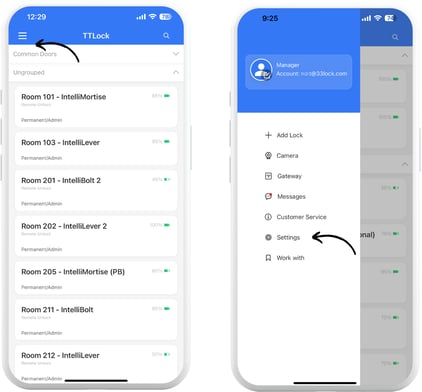
1. From the main lock page, tap on the menu icon, and then tap “Settings”.
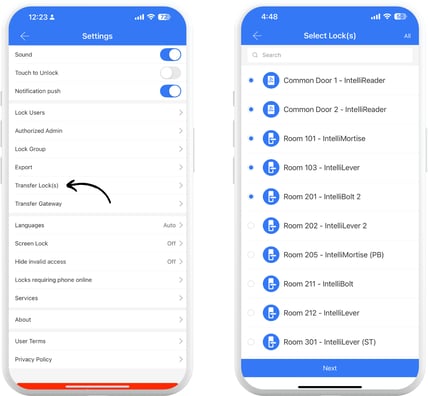
2. Tap “Transfer Lock(s)”, select locks you want to transfer to another TTLock account and tap “Next”.
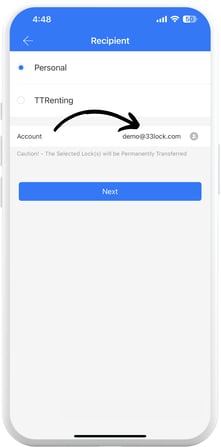
3. Enter a valid phone number or email registered to a TTLock account, then click “Next”. You will then be prompted to confirm the transfer.
❗Once transferred, you will no longer have access to the lock. To regain access, the new administrator must add you as an [authorized administrator](https://help.33lock.com/lock-administrators?hsLang=en-us).
- [Getting Started](https://help.33lock.com/getting-started?hsLang=en-us#main-content)
- [Understanding the Basics](https://help.33lock.com/getting-started?hsLang=en-us#understanding-the-basics)
- [Initial Setup](https://help.33lock.com/getting-started?hsLang=en-us#initial-setup)
- [Before You Buy](https://help.33lock.com/before-you-buy?hsLang=en-us#main-content)
- [Door Templates & Compatibility Guides](https://help.33lock.com/before-you-buy?hsLang=en-us#door-templates-compatibility-guides)
- [IntelliMortise Cover Plates](https://help.33lock.com/before-you-buy?hsLang=en-us#intellimortise-cover-plates)
- [Installation](https://help.33lock.com/installation?hsLang=en-us#main-content)
- [Installation Manual](https://help.33lock.com/installation?hsLang=en-us#installation-manual)
- [Post-Installation Checklist](https://help.33lock.com/installation?hsLang=en-us#post-installation-checklist)
- [Managing Devices](https://help.33lock.com/managing-devices?hsLang=en-us#main-content)
- [Connecting your Devices](https://help.33lock.com/managing-devices?hsLang=en-us#connecting-your-devices)
- [Lock Features & Settings](https://help.33lock.com/managing-devices?hsLang=en-us#lock-features-settings)
- [Managing Lock Access](https://help.33lock.com/managing-devices?hsLang=en-us#managing-lock-access)
- [Lock Adminstration](https://help.33lock.com/managing-devices?hsLang=en-us#lock-adminstration)
- [Integrations](https://help.33lock.com/integrations?hsLang=en-us)
- [FAQs](https://help.33lock.com/faqs?hsLang=en-us#main-content)
- [General Lock Questions](https://help.33lock.com/faqs?hsLang=en-us#general-lock-questions)
- [Installation & Compatibility Questions](https://help.33lock.com/faqs?hsLang=en-us#installation-compatibility-questions)
- [Gateway Questions](https://help.33lock.com/faqs?hsLang=en-us#gateway-questions)
- [Troubleshooting Hub](https://help.33lock.com/troubleshooting-hub?hsLang=en-us#main-content)
- [Hardware Troubleshooting](https://help.33lock.com/troubleshooting-hub?hsLang=en-us#hardware-troubleshooting)
- [Warranty & Returns](https://help.33lock.com/warranty-returns?hsLang=en-us)
- [PRODUCTS](https://www.33lock.com/products)
- [PARTNERS](https://www.33lock.com/partners)
- [ABOUT US](https://www.33lock.com/about)
[%20Logo%20(5)-1.png?width=160&height=80&name=v%20(Dark%20BG%20variant)%20Logo%20(5)-1.png)](http://www.33lock.com)
[mailto:support@33lock.com](mailto:support@33lock.com)
Copyright © 2026, 33lock.com