%20Logo%20(5)-1.png?width=160&height=80&name=v%20(Dark%20BG%20variant)%20Logo%20(5)-1.png)
Unsure which passcode types to issue? Review this article to learn about the different passcode types.
Steps to generate passcodes in mobile app
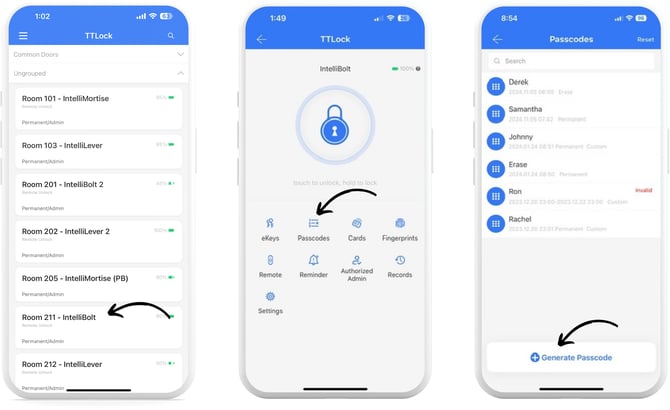
1. Select a lock from the main menu, then tap “Passcodes”, then tap “Generate Passcode”
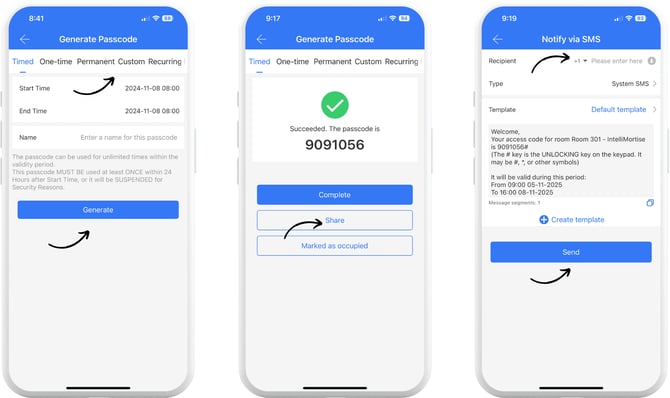
2. Choose one of the Passcode types (Timed, Custom, etc.), and If applicable, specify the start and end times and assign a name, then tap “Generate”. Once the passcode is generated, it can optionally be shared via email or SMS directly from the app using a pre-set template.
Steps to generate passcode in web system
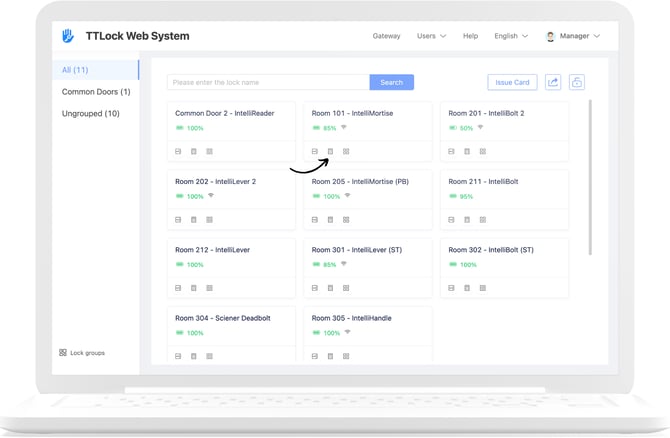
1. From the main lock menu, click the number pad icon on the lock you want to generate a passcode for.
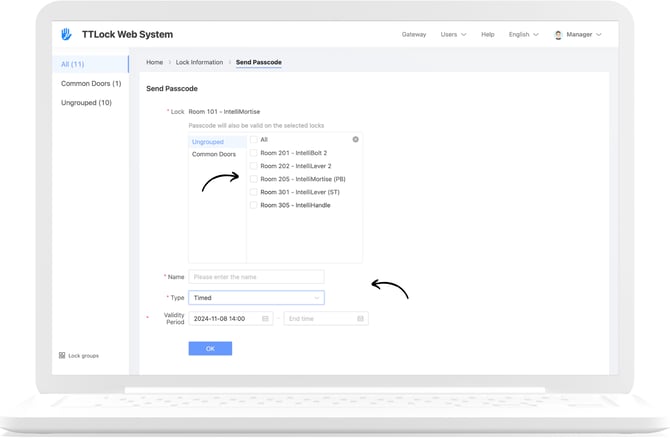
2. Click the ”+” button to select additional locks to add the passcode to, enter a “Name” and select one of the Passcode types (Timed, Custom, etc.). If applicable, specify the start and end times and assign a name, then click “OK”. Once the passcode is generated, it can optionally be shared via email or SMS directly from the app using a pre-set template.