%20Logo%20(5)-1.png?width=160&height=80&name=v%20(Dark%20BG%20variant)%20Logo%20(5)-1.png)
Use cases for passage mode include:
- Keeping doors unlocked in specific common areas (pool access, etc.)
- Keeping doors unlocked for staff, contractors, or maintenance personnel who may need access to rooms or areas throughout the day.
Steps to enable passage mode:
-
Select the lock you want to view the unlock status, then tap “Settings”
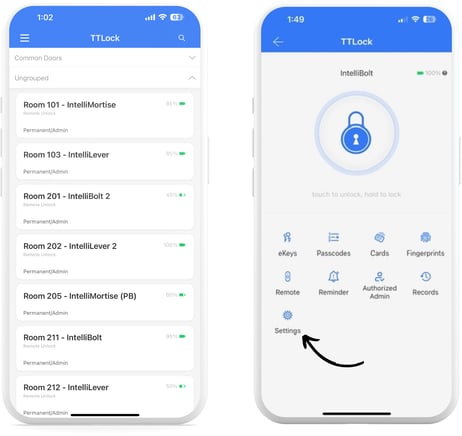
- Tap on “Passage Mode”, and then tap the “Turn On” button.
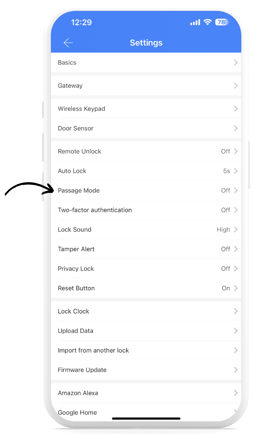
- Tap the toggle on, and you will see the “Time Period” section appear.
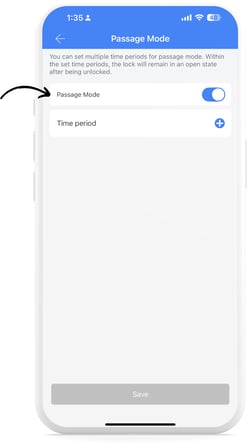
- Tap the blue “+” button, and select the days and the timeframe for which you want the lock to remain open.
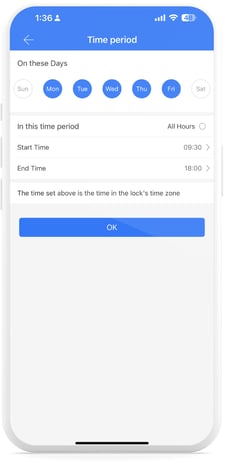
- If you do not input a schedule, the lock will remain open until the passage mode is toggled off.
-
Auto Lock must be enabled for the lock to automatically lock at the end of the configured time period. See Auto Lock section.
-
With the free version of TTLock, users can only add one schedule per lock.
- The final step to enable passage mode on a lock is to present any valid credential to the lock during the specified schedule. The lock will notify you that it’s in passage mode.